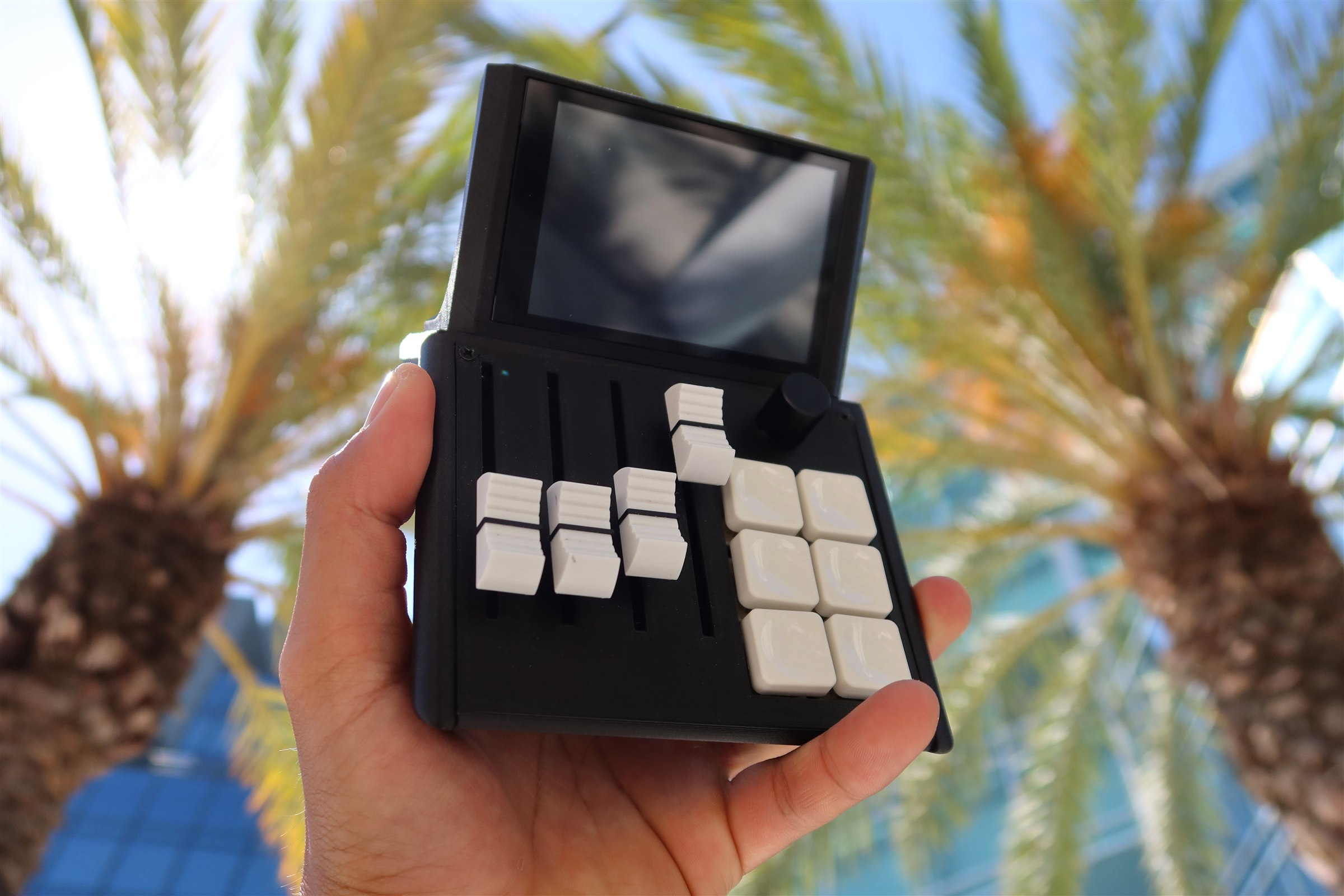
Link Mixlar Control to your favourite apps and services.
Control playback, skip tracks, heart songs, and adjust volume
Get StartedSwitch scenes, toggle recording & streaming, mute sources, and more
Get StartedControl lights, trigger automations, and run scenes from your desk
Get StartedMute, deafen, switch channels, and control per-user voice volumes
Get StartedMonitor print progress, temperatures, and control your printer
Get StartedConnect your Spotify account to control playback directly from your Mixlar.
In Mixlar Control, go to Settings → Spotify and click Connect.
Click the "Create a Spotify App" link inside Mixlar Control. This opens the Spotify Developer Dashboard in your browser.
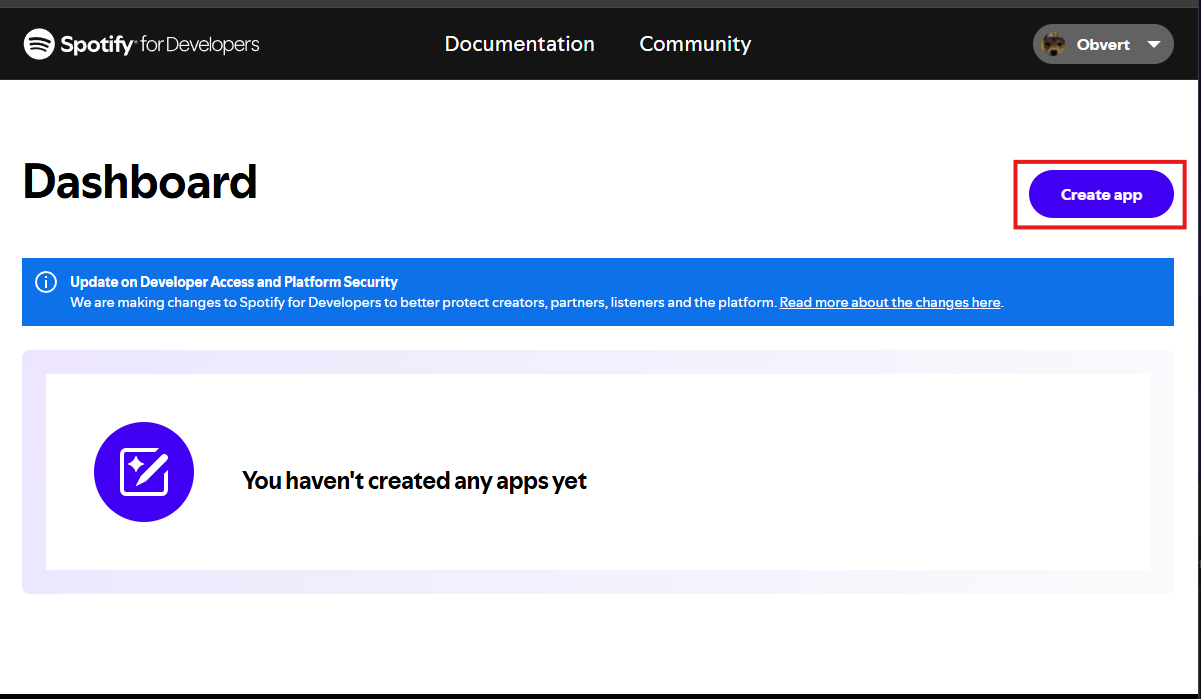
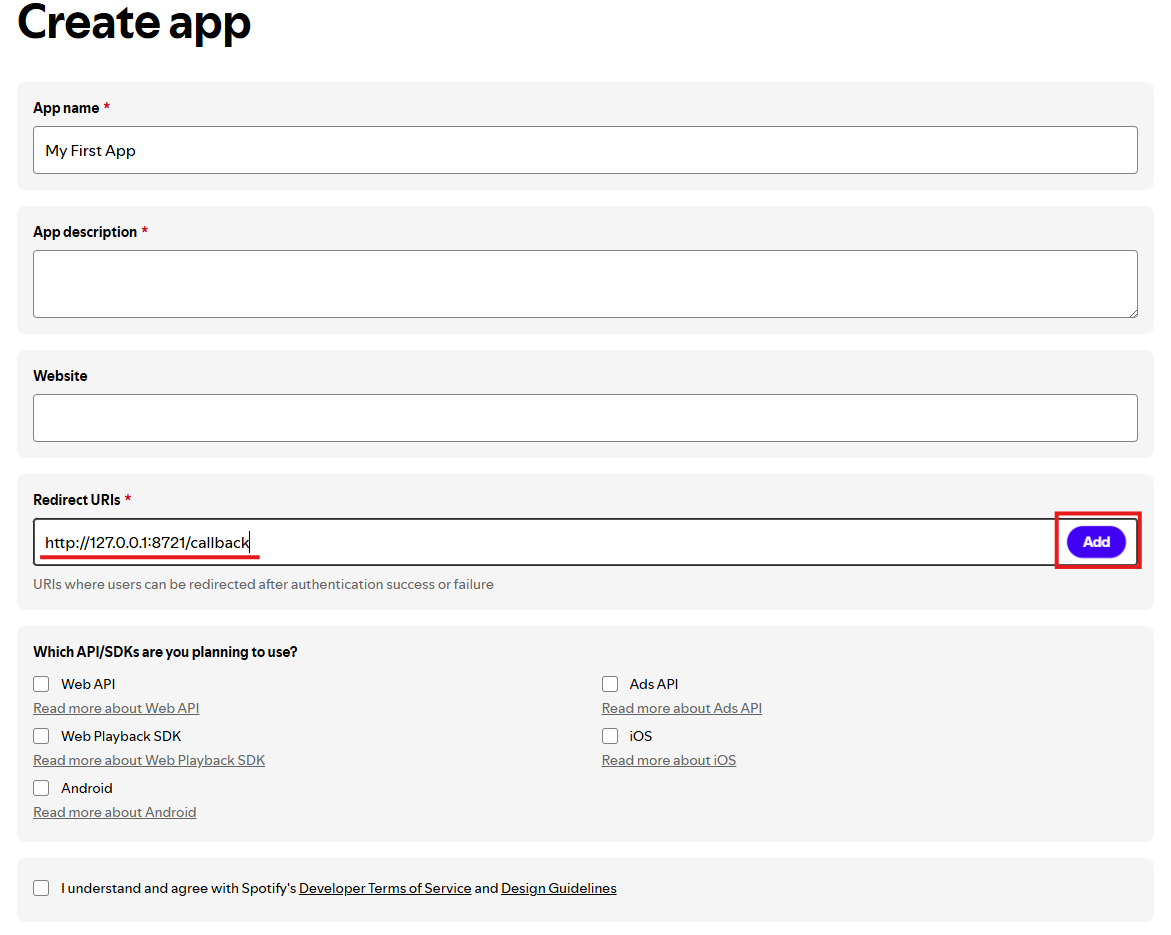
In the Spotify Developer Dashboard, click Create App. Give it any name and description you like.
In your app's settings, add the following redirect URI:
http://127.0.0.1:8721/callback
Click Save.
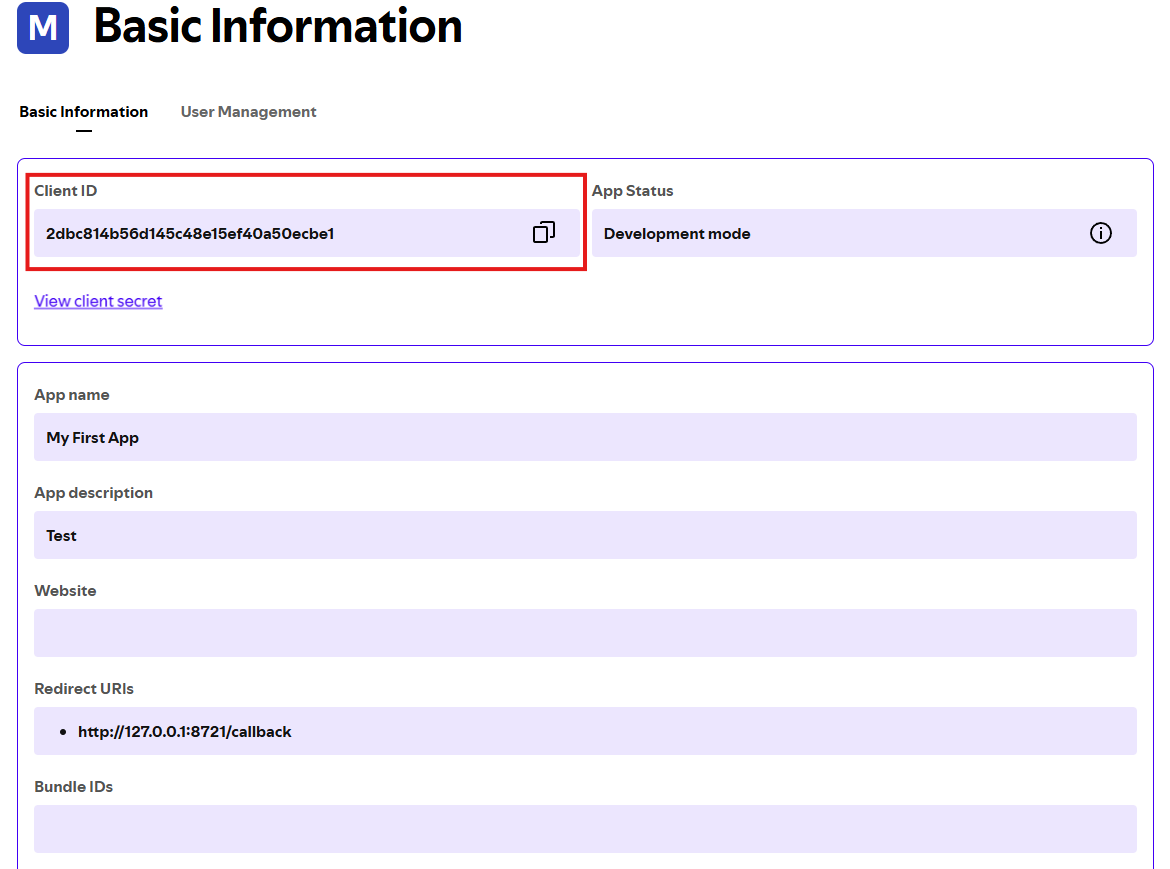
Copy the Client ID from your Spotify app's overview page and paste it into Mixlar Control.
Click "Authorize with Spotify" in Mixlar Control. Your browser will open for approval.
Approve the requested permissions in your browser. You'll be redirected back automatically.
Spotify controls are now available in your macros and sliders. Start controlling your music from your desk.
Connect OBS Studio to switch scenes, toggle recording, and control sources from your Mixlar.
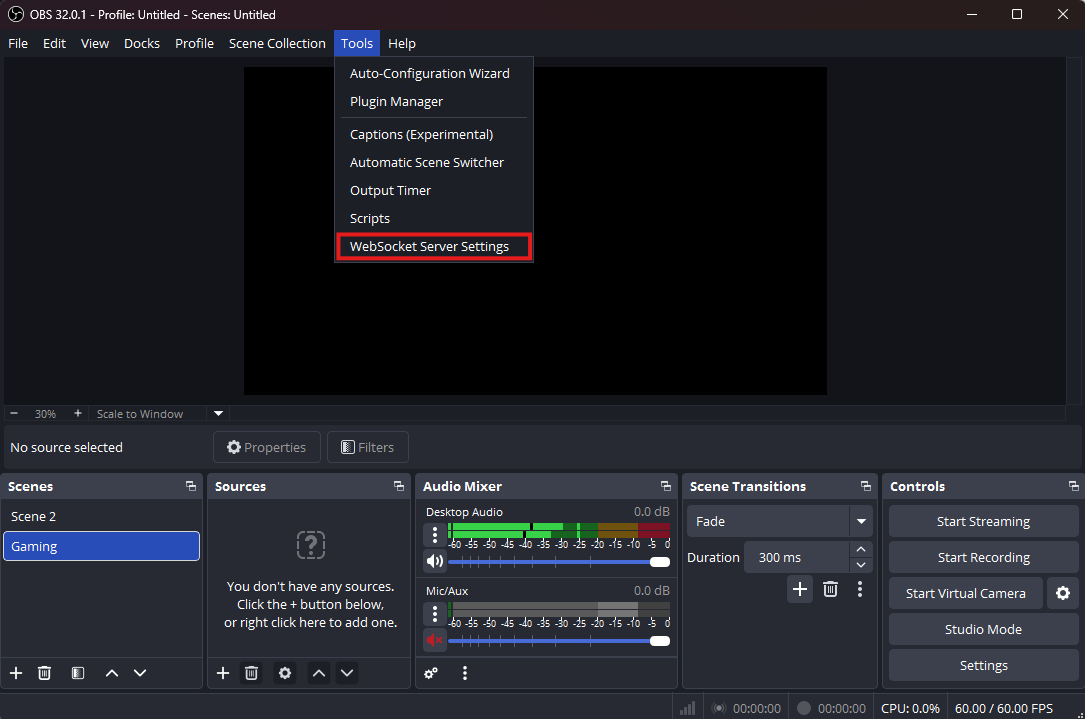
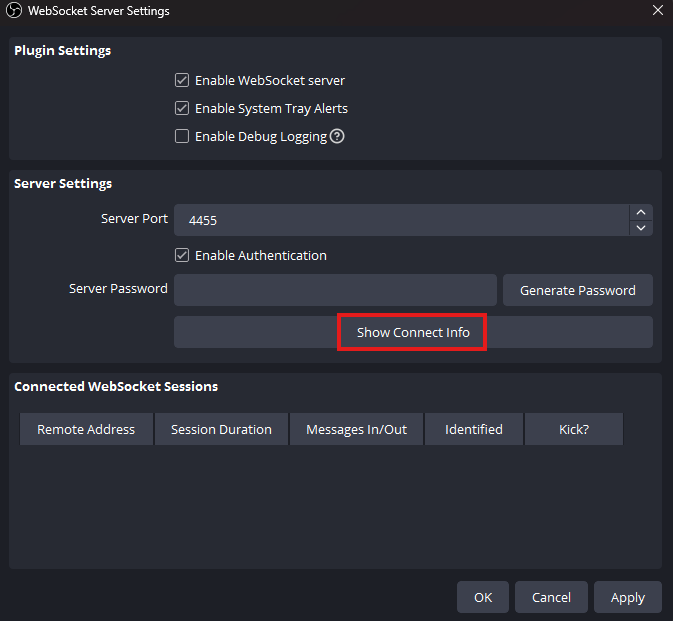
In OBS Studio, go to Tools → WebSocket Server Settings.
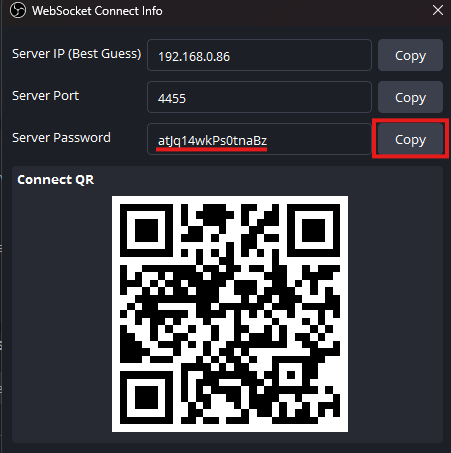
Check "Enable WebSocket server". The default port is 4455. Click Show Connect Info to reveal the password.
In the Connect Info dialog, click Copy next to the Server Password. You'll paste this into Mixlar Control.
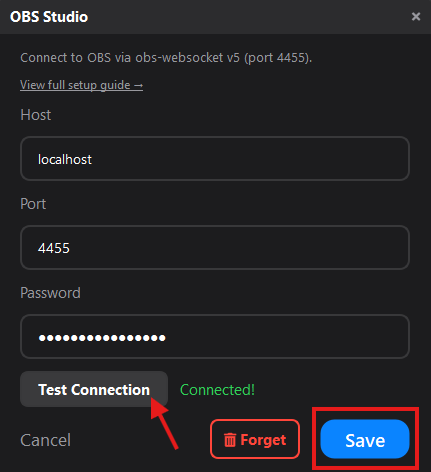
In Mixlar Control, go to Settings → OBS and click Connect.
Enter the host (localhost), port (4455), and paste the password. Click Test Connection, then Save.
OBS is now linked to Mixlar Control. You have access to 23 macro actions for full studio control.
Connect Home Assistant to control your smart home devices from your Mixlar.
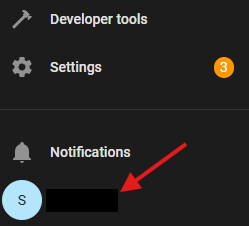
Open Home Assistant and click your profile icon in the bottom-left corner of the sidebar.
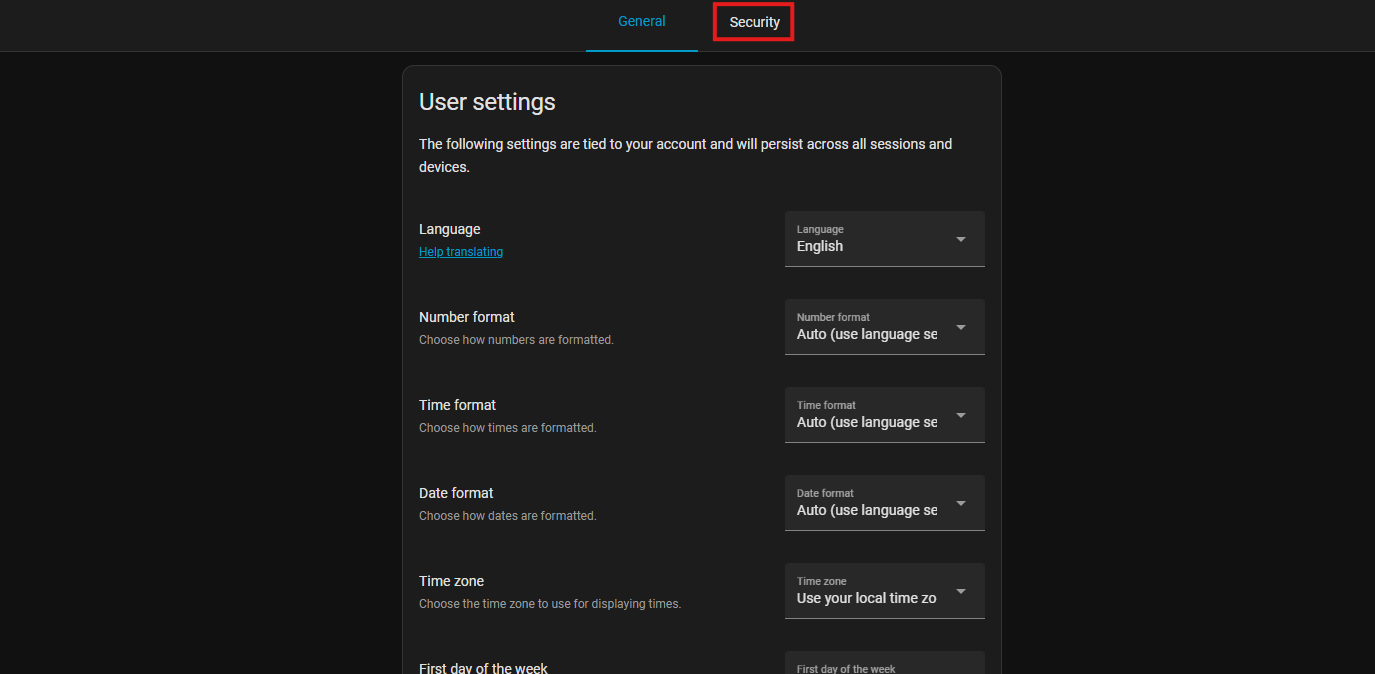
On your profile page, click the Security tab at the top.
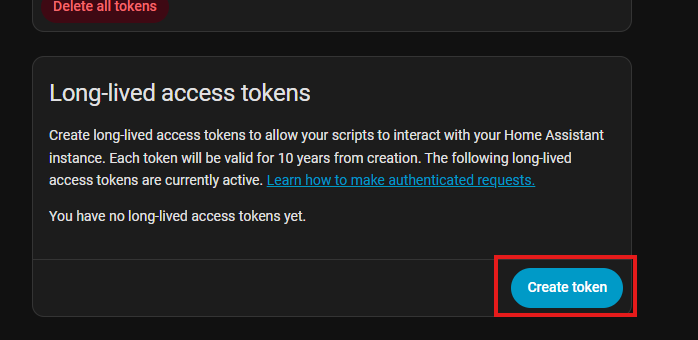
Scroll down to "Long-lived access tokens" and click Create token.
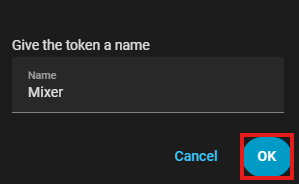
Give the token a name (e.g. "Mixer") and click OK.
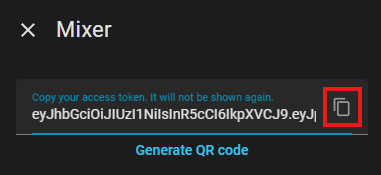
Click the copy button to copy your token. Save it somewhere safe — it won't be shown again.
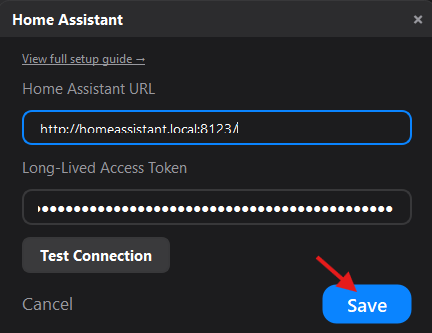
In Mixlar Control, go to Settings → Home Assistant and click Connect. Enter your Home Assistant URL and paste the token, then click Save.
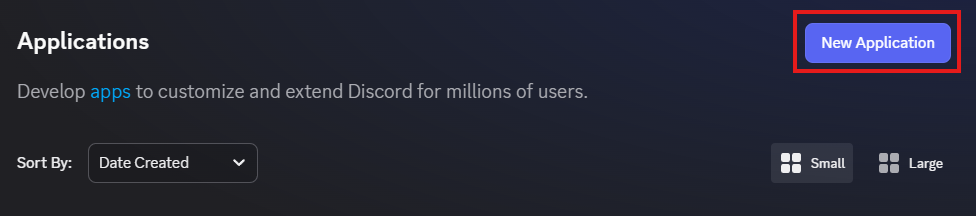
Connect Discord to control voice, mute, deafen, and per-user volumes from your Mixlar.
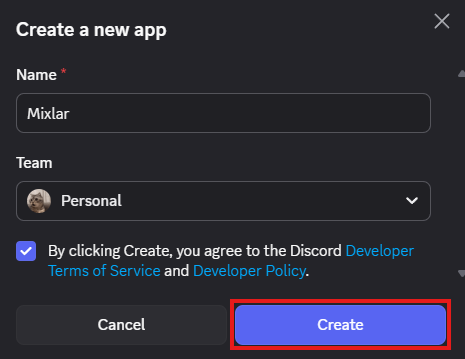
Give it a name (e.g. "Mixlar") and click Create.
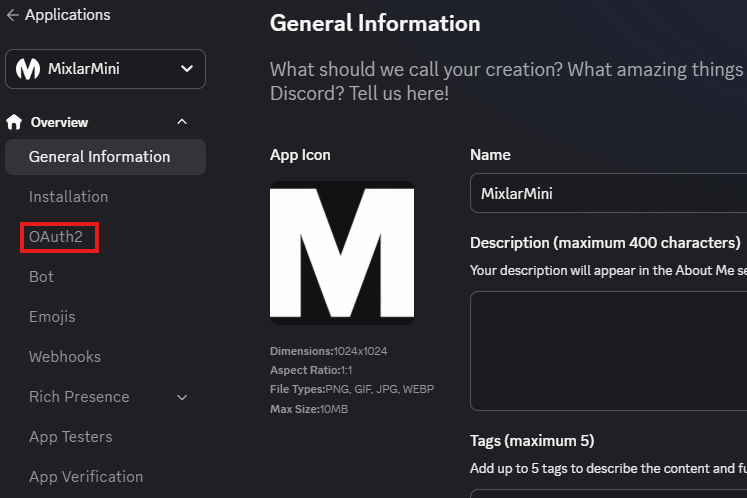
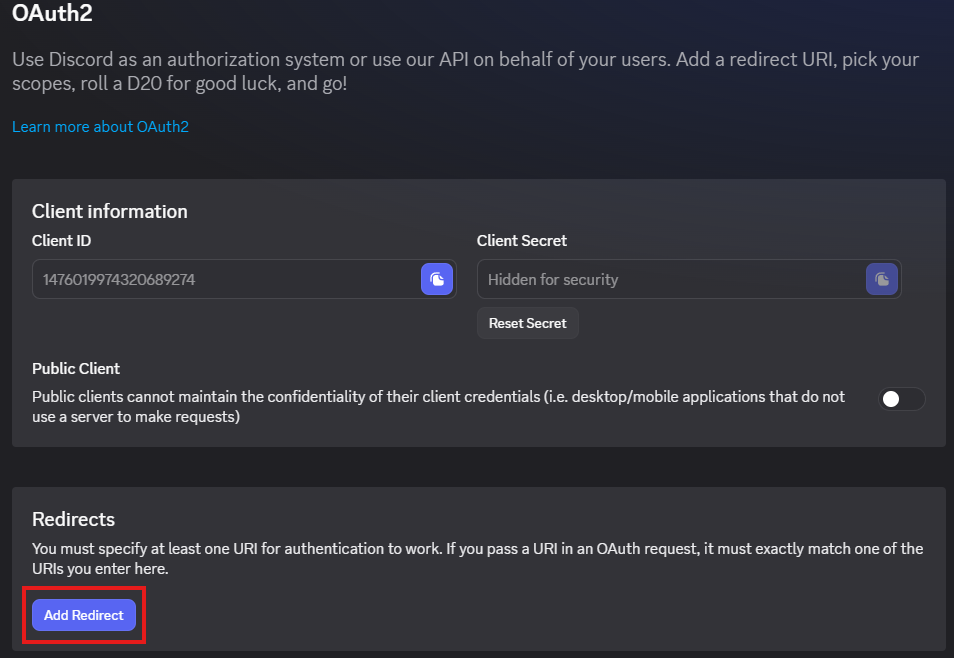
In the sidebar, click OAuth2 to open the OAuth2 settings.
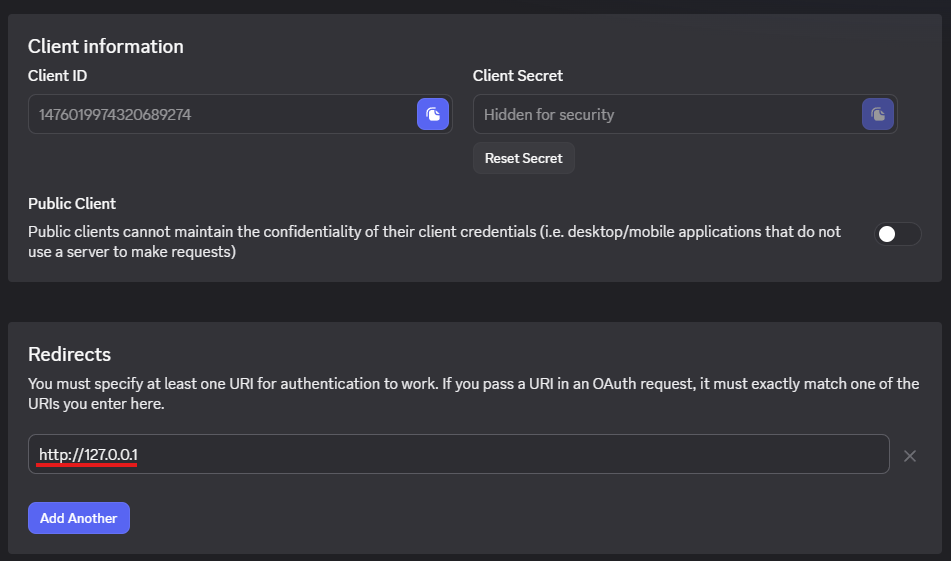
Under Redirects, click Add Redirect and enter:
http://127.0.0.1
Type http://127.0.0.1 in the redirect field and save your changes.
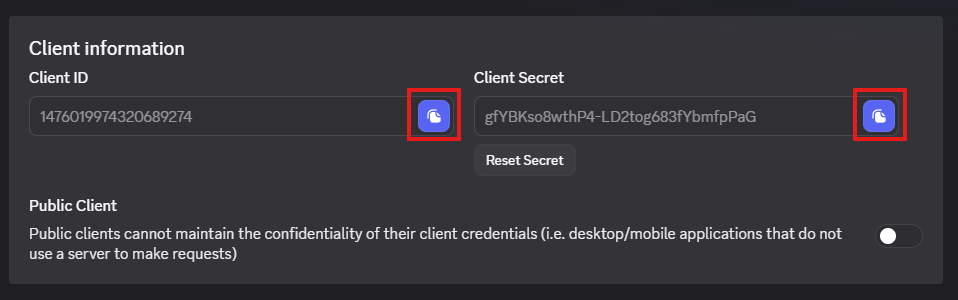
In the Client information section, click the copy buttons next to the Client ID and Client Secret.
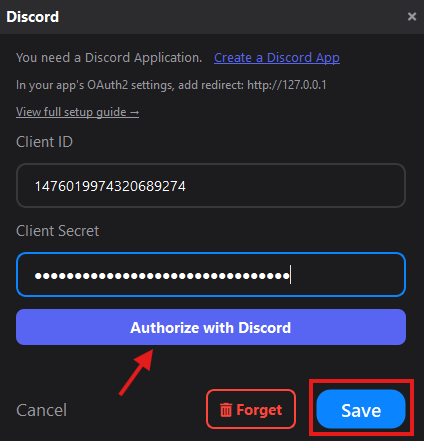
In Mixlar Control, go to Settings → Discord and click Connect. Paste the Client ID and Client Secret, then click Authorize with Discord and Save.
Connect your 3D printer to monitor print progress, view temperatures, and control prints from your Mixlar.
Navigate to your OctoPrint instance in a browser (usually http://<printer-ip>).
Click the wrench icon (Settings) in the top bar, then navigate to Application Keys under Features.
Enter an application name (e.g. "Mixlar") and click Generate. Copy the generated API key.
In Mixlar Control, go to Settings → 3D Printer and click Connect. Select OctoPrint, enter your printer's IP address and paste the API key. Click Test Connection, then Save.
Your Klipper printer runs Moonraker as its API server. Find the IP address from your printer's network settings or router. The default port is 7125.
In Mixlar Control, go to Settings → 3D Printer and click Connect. Select Moonraker (Klipper), enter the IP address (e.g. 192.168.1.100:7125). No API key is needed. Click Test Connection, then Save.
Make sure your printer is on the same network as your PC. On the touchscreen, go to Settings → Network and note the IP address.
The location depends on your model:
X1C / X1E: Tap the Settings honeycomb → Network tab.
P1P / P1S: Tap the Settings gear — the access code is shown directly.
A1 / A1 Mini: Open Settings and scroll to the third page to find the access code.
On the touchscreen, go to Settings → Device Info (under the General tab on X1 series). The serial number is also printed on a sticker on the back or inside of your printer.
In Mixlar Control, go to Settings → 3D Printer and click Connect. Select Bambu Lab, enter the IP address, access code, and serial number. Click Test Connection, then Save.
On your FlashForge printer's touchscreen, go to Settings → Network (or About) to find the IP address. The printer communicates on port 8899 (configured automatically).
In Mixlar Control, go to Settings → 3D Printer and click Connect. Select FlashForge, enter the IP address. No API key is needed. Click Test Connection, then Save.